[태그:] ros

  • gmapping slam으로 지도 만들기

    여기 있는 gmapping, slam 튜토리얼을 했다. 튜토리얼은 상당히 쉽게 구성되어 있으나, 내가 실재로 해보면 잘 안된다. 왜 그런지 확인하기 위해 삽질을 했다. 해당 사이트에서 다운로드 받을 수 있는 rosbag 파일에 어떤 토픽이 저장되어 있는지 궁금했다. rqt가 제공하는 rosbag 플러그인으로 어떤 데이터가 있는지 확인했다.

    rosbag play로 실행하면 뭐가 잘못 되었는지 다음 메세지를 보았다. debug 레벨을 켜라는 소리인 듯 한데…

    [ WARN] [1664664315.511464153]: MessageFilter [target=odom ]: Dropped 100.00% of messages so far. Please turn the [ros.gmapping.message_filter] rosconsole logger to DEBUG for more information.

    rosconsole로 message filter 현재 상태를 확인하고 변경할 수 있다.

    root:workspace$rosconsole get /slam_gmapping ros.gmapping.message_filter
    info
    root:workspace$rosconsole set slam_gmapping ros.gmapping.message_filter debug

    rosbag에 -a 옵션을 주고 모든 데이터를 저장하면 지도를 만들 수 있다. 아래와 같이 tf와 scan 데이터만 저장한 다음 rosbag play를 실행하면 tf tree가 끊어져 있다. 정확하게는 basefoot_print와 base_link가 끊겨져 있고, scanner_link가 없다.

    ros@workspace$rosbag record /tf /laser/scan
    [ INFO] [1664767902.638118674]: Subscribing to /laser/scan
    [ INFO] [1664767902.642276643]: Subscribing to /tf
    [ INFO] [1664767902.645339564]: Recording to '2022-10-03-03-31-42.bag'.
    ros@workspace$ros@bag$rosbag play --clock 2022-10-03-03-31-42.bag

    하나씩 해 보다가 /tf_static까지 record 해 보았다. 아, 힘들었다^^!

    ros@bag$rosbag record -o mydata /tf /tf_static /laser/scan
    [ INFO] [1664769638.007469286]: Subscribing to /laser/scan
    [ INFO] [1664769638.011680347]: Subscribing to /tf
    [ INFO] [1664769638.014193685]: Subscribing to /tf_static
    [ INFO] [1664769638.298793651, 1626.350000000]: Recording to 'mydata_2022-10-03-04-00-38.bag'.

    record한 결과를 보면 지도가 잘 생성됨을 확인했다. tf_tree를 보면

    위 빠진 tf_tree와 다르게 base_footprint와 base_link가, base_link와 scanner_link가 연결되었다. 왜 이렇게 결정되었는지 확인해 보면, urdf에 fixed라고 joint를 정의해서 그렇다. 아래 urdf를 정의한 부분을 확인해 보면 fixed로 joint를 정의했기 때문에 tf_static을 필요로 한다.

     42 
     43         <joint name = "base_footprint_fixed" type = "fixed">
     44                 <origin xyz = "0 0 0.03" rpy = "0 0 0"/>
     45                 <parent link = "base_footprint"/>
     46                 <child link = "base_link"/>
     47         </joint>
     48 
    
    146         <joint name = "left_wheel_joint" type = "continuous">
    147                 <origin xyz = "0.1 0.15 0" rpy = "0 0 0"/>
    148                 <parent link = "base_link"/>
    149                 <child link = "left_wheel"/>
    150                 <axis xyz = "0 1 0"/>
    151 
    152         </joint>
    153 
    154         <joint name = "left_wheel_joint_back" type = "continuous">
    155                 <origin xyz = "-0.1 0.15 0" rpy = "0 0 0"/>
    156                 <parent link = "base_link"/>
    157                 <child link = "left_wheel_back"/>
    158                 <axis xyz = "0 1 0"/>
    159 
    160         </joint>
    161 
    162 
    
    
    205         <joint name = "head_scanner" type = "fixed">
    206                 <!-- rpy를 수정하면 카메라 각도가 바뀜-->
    207                 <origin xyz = "0.15 0 0" rpy = "0 0 0"/>
    208                 <parent link = "base_link"/>
    209                 <child link = "scanner_link"/>
    210         </joint>
    211 

    기록한 rosbag 파이을 보면, scan, tf, tf_static 3개가 들어가 있다.

  • gazebo에서 spawn model

    gazebo에서 spawn model

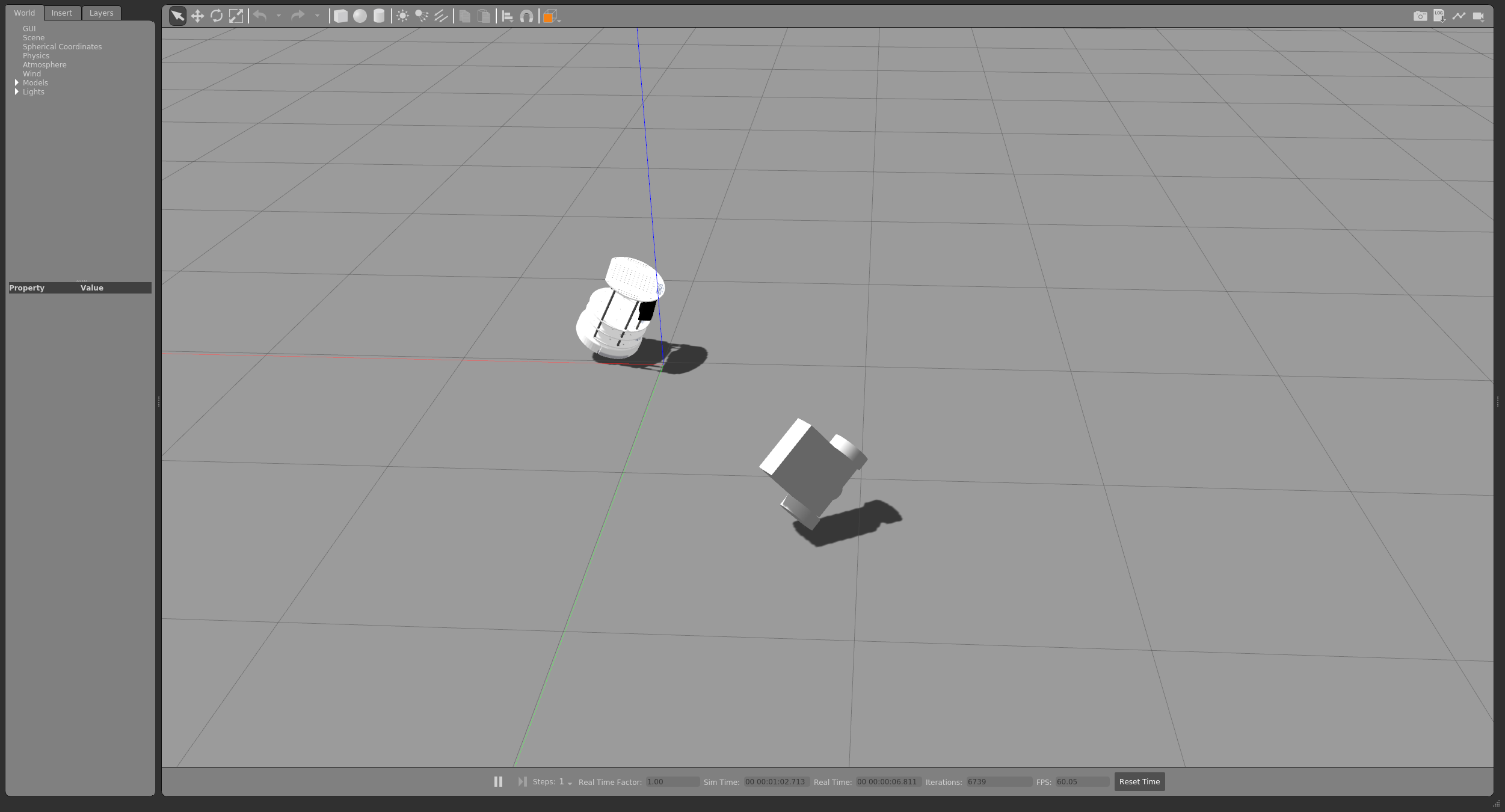
    물리 엔진을 가지고 있는 gazebo로 로봇을 만들지 않고도 쉽게 테스트 해 볼 수 있다. 기본 설정 파일이 있는데, 사용자가 취향에 맞춰 자유롭게 환경 설정을 할 수도 있다. 빈 공간에 각종 모듈을 불러 내 공간에 넣고, gazebo tutorial을 따르면 로봇도 spawn 가능하다.

    Programming Robots With Ros 책 144p에 보면 간단한 python 파일을 만들고 gazebo에 로딩하는 내용이 있다.

    http://wiki.ros.org/simulator_gazebo/Tutorials/SpawningObjectInSimulation

    https://github.com/ros-simulation/gazebo_ros_pkgs/issues/864

    사용자가 만든 urdf 파일을 gazebo 가상 환경에 spawn 할 수 있다. 다만 inetia를 모두 입력해야(틀린 값이라도 입력해야) gazebo가 인식한다. spawn_model가 gazebo_ros 패키지에 포함되어 있다. inetia 값을 입력하지 않으면 로딩이 안된다. 중간에 나오는 spawn service failed는 무시해도 괜찮은 듯 하다. 어쨋든 굴러 가니까.

    [INFO] [1662392890.824294, 55.975000]: Spawn status: SpawnModel: Entity pushed to spawn queue, but spawn service timed out waiting for entity to appear in simulation under the name agv_number1
    [ERROR] [1662392890.827400, 55.975000]: Spawn service failed. Exiting.
    https://github.com/ros-simulation/gazebo_ros_pkgs/issues/864

    launch 파일이다.

    <?xml version="1.0" encoding="UTF-8"?>
    
    <launch>
    	<!-- Robot pose -->
    	<arg name="x" default="0"/>
    	<arg name="y" default="0"/>
    	<arg name="z" default="1"/>
    	<arg name="roll" default="3.14"/>
    	<arg name="pitch" default="2"/>
    	<arg name="yaw" default="0"/>
    	<arg name="model_name"   default="agv_number1"/>
    
    		<!--<param name="robot_description" command = "cat $(find wander_bot)/urdf/robot.urdf"/>-->
    
    			<!-- We resume the logic in empty_world.launch, changing only the name of the world to be launched -->
    		<include file="$(find gazebo_ros)/launch/empty_world.launch">
    			<arg name="world_name" value="$(find wander_bot)/worlds/my_world"/>
    			<arg name="use_sim_time" value="true"/>
    				<!-- more default parameters can be changed here -->
    		</include>
    
    		<param name="robot_description" textfile = "$(find wander_bot)/urdf/robot.urdf" /> 
    			<!-- Spawn My Robot -->
    			<!--
    				<node name="urdf_spawner" pkg="gazebo_ros" type="spawn_model" respawn="false" output="screen" 
    				args="-urdf -param robot_description -model $(arg model_name) 
    				-x $(arg x) -y $(arg y) -z $(arg z)
    				-R $(arg roll) -P $(arg pitch) -Y $(arg yaw)"/>
    			-->
    				<node name="urdf_spawner" pkg="gazebo_ros" type="spawn_model" respawn="false" output="screen" 
    					args="-urdf -param robot_description -model $(arg model_name) 
    					-x $(arg x) -y $(arg y) -z $(arg z)
    					-R $(arg roll) -P $(arg pitch) -Y $(arg yaw)"/>
    
    
    				<node name="test_node" pkg="wander_bot" type="red_green_light.py"
    					args="/cmd_vel">
    			</node>
    		</launch>

    urdf 파일이다.

    <?xml version="1.0" ?>
    <robot name="mobile_robot" xmlns:xacro="http://www.ros.org/wiki/xacro">
    	<material name="blue">
    		<color rgba = "0 0 0.8 1"/>
    	</material>
    
    	<material name="gray">
    		<color rgba = "1 1 1 1"/>
    	</material>
    
    	<material name="blueviolet">
    		<color rgba = "0.54 0.16 0.88 1"/>
    	</material>


    	<link name = "base_footprint"/>
    
    	<link name="base_link">
    		<visual>
    			<origin xyz="0 0 0" rpy = "0 0 0"/>
    			<geometry>
    				<box size = "0.3 0.24 0.1" rpy = "0 0 0" />
    			</geometry>
    			<material name = "gray"/>
    
    		</visual>
    		<collision>
    			<origin xyz="0 0 0.03" rpy = "0 0 0"/>
    			<geometry>
    				<box size = "0.3 0.25 0.1" />
    			</geometry>
    
    		</collision>
    		<inertial>
    			<mass value = "1.0" />
    			<inertia  ixx="1.0" ixy="0.0"  ixz="0.0"  iyy="100.0"  iyz="0.0"  izz="1.0" />
    		</inertial>
    
    	</link>
    
    
    	<joint name = "base_footprint_fixed" type = "fixed">
    		<origin xyz = "0 0 0.03" rpy = "0 0 0"/>
    		<parent link = "base_footprint"/>
    		<child link = "base_link"/>
    	</joint>
    
    
    	<link name = "left_wheel">
    		<visual>
    			<origin xyz = "0 0 0" rpy = "1.570796 0 0" />
    			<geometry>
    				<cylinder length = "0.05" radius = "0.08" />
    			</geometry>
    			<material name ="blue"/>
    
    		</visual>
    		<collision>
    			<origin xyz = "0 0 0" rpy = "1.570796 0 0" />
    			<geometry>
    				<cylinder length = "0.05" radius = "0.08" />
    			</geometry>
    
    		</collision>
    		<inertial>
    			<mass value = "1.0" />
    			<inertia  ixx="1.0" ixy="0.0"  ixz="0.0"  iyy="100.0"  iyz="0.0"  izz="1.0" />
    		</inertial>


    	</link>
    
    	<link name = "right_wheel">
    		<visual>
    			<origin xyz = "0 0 0" rpy = "1.570796 0 0" />
    			<geometry>
    				<cylinder length = "0.05" radius = "0.08" />
    			</geometry>
    			<material name ="blue"/>
    
    		</visual>
    		<collision>
    			<origin xyz = "0 0 0" rpy = "1.570796 0 0" />
    			<geometry>
    				<cylinder length = "0.05" radius = "0.08" />
    			</geometry>
    
    		</collision>
    
    		<inertial>
    			<mass value = "1.0" />
    			<inertia  ixx="1.0" ixy="0.0"  ixz="0.0"  iyy="100.0"  iyz="0.0"  izz="1.0" />
    		</inertial>
    
    	</link>
    
    
    	<joint name = "left_wheel_joint" type = "continuous">
    		<origin xyz = "0.1 0.15 0" rpy = "0 0 0"/>
    		<parent link = "base_link"/>
    		<child link = "left_wheel"/>
    		<axis xyz = "0 1 0"/>
    
    	</joint>
    
    	<joint name = "right_wheel_joint" type = "continuous">
    		<origin xyz = "0.1 -0.15 0" rpy = "0 0 0"/>
    		<parent link = "base_link"/>
    		<child link = "right_wheel"/>
    		<axis xyz = "0 1 0" />
    
    	</joint>
    
    	<link name="scanner_link">
    		<visual>
    			<origin xyz="0 0 0" rpy = "0 0 0"/>
    			<geometry>
    				<cylinder length="0.05" radius="0.035"/>
    			</geometry>
    			<material name = "blueviolet"/>
    
    		</visual>
    		<collision>
    			<origin xyz="0 0 0" rpy = "0 0 0"/>
    			<geometry>
    				<cylinder length="0.05" radius="0.035"/>
    			</geometry>
    
    		</collision>
    		<inertial>
    			<mass value = "1.0" />
    			<inertia  ixx="1.0" ixy="0.0"  ixz="0.0"  iyy="100.0"  iyz="0.0"  izz="1.0" />
    		</inertial>
    
    	</link>
    
    	<joint name = "head_scanner" type = "fixed">
    		<origin xyz = "0.15 0 0" rpy = "0 1.5708 0"/>
    		<parent link = "base_link"/>
    		<child link = "scanner_link"/>
    	</joint>
    
    </robot>

    직접 해보기도 좋지만, 남이 한 프로젝트를 보는게 더 빠르다.

  • urdf 작성하여 rviz로 표시하기

    urdf 작성하여 rviz로 표시하기

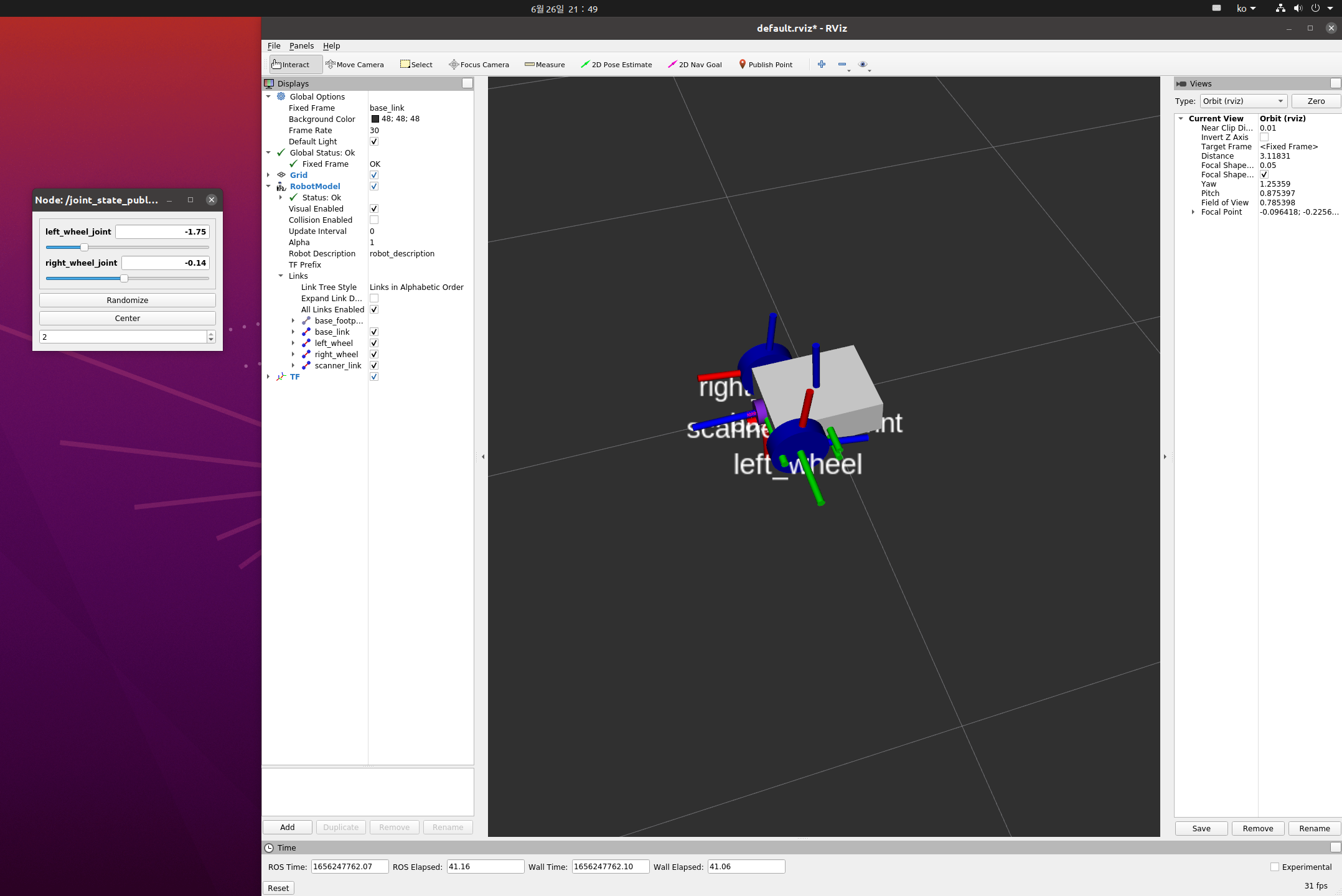
    tutorial site를 참조하여 실습을 했다. 로봇 살 돈이 없어 몸으로 때우는 수 밖에. 요즘 원자재와 공급망 이슈로 값도 오르고 구하기도 힘들다. 막상 사 보면 그렇게 자주 쓰이지도 않아 보인다.
    https://www.notion.so/2-2-1-URDF-930e055d01ee49cd859ac02ea8770325

    http://wiki.ros.org/urdf/Tutorials/Building%20a%20Visual%20Robot%20Model%20with%20URDF%20from%20Scratch

    3차원 그래픽을 직접 수정하여 각 좌표를 찾으면 쉬운데, URDF 형식이 지원하지 않는다. 각 부품이 어디에 붙는지 계산하여 직접 입력해야 한다.

    urdf를 수정 한 후 rviz로 보면 No transform from A to B 메세지가 나오면서 link가 표시되지 않는다. 다음 순서대로 실행하면 된다.

    1. tutorial 참조하여 launch 파일 작성. robot_state_publisher와 joint_state_publisher를 launch에 넣어야 한다.
    2. roslaunch로 launch 실행
    3. rviz 실행
    <launch>
        <param name="robot_description" command="$(find xacro)/xacro $(find robot)/urdf/robot.urdf" />
    <node pkg="robot_state_publisher" type="robot_state_publisher" name="robot_state_publisher"/>
    <node pkg="joint_state_publisher_gui" type="joint_state_publisher_gui" name="joint_state_publisher_gui"/>
    
    </launch>
    

    rviz를 한버만 실행하고 launch 하면 no transform 메세지를 본다. urdf 파일 만들 때 각 수치를 정확하게 알 수 없어 귀찮아서 rviz를 한 번 켜놓고 끄질 않는데, 이 때문에 안 보인다. gui툴로 표시된 슬라이더를 돌리면 좌표가 회전됨을 확인 할 수 있다.

    능력자는 잘 만들겠지만, 내 수준에서는 바퀴 두 개도 겨우 따라 했다. material은 rgb 코드를 255로 나눠줘야 한다.

    <?xml version="1.0" ?>
    <robot name="mobile_robot" xmlns:xacro="http://www.ros.org/wiki/xacro">
    	<material name="blue">
    		<color rgba = "0 0 0.8 1"/>
    	</material>
    
    	<material name="gray">
    		<color rgba = "1 1 1 1"/>
    	</material>
    
    	<material name="blueviolet">
    		<color rgba = "0.54 0.16 0.88 1"/>
    	</material>
    	<link name = "base_footprint"/>
    	<link name="base_link">
    		<visual>
    			<origin xyz="0 0 0" rpy = "0 0 0"/>
    			<geometry>
    				<box size = "0.3 0.24 0.1" rpy = "0 0 0" />
    			</geometry>
    			<material name = "gray"/>
    
    		</visual>
    		<collision>
    			<origin xyz="0 0 0.03" rpy = "0 0 0"/>
    			<geometry>
    				<box size = "0.3 0.25 0.1" />
    			</geometry>
    
    		</collision>
    	</link>
    	<joint name = "base_footprint_fixed" type = "fixed">
    		<origin xyz = "0 0 0.03" rpy = "0 0 0"/>
    		<parent link = "base_footprint"/>
    		<child link = "base_link"/>
    	</joint>
    
    
    	<link name = "left_wheel">
    		<visual>
    			<origin xyz = "0 0 0" rpy = "1.570796 0 0" />
    			<geometry>
    				<cylinder length = "0.05" radius = "0.08" />
    			</geometry>
    			<material name ="blue"/>
    
    		</visual>
    		<collision>
    			<origin xyz = "0 0 0" rpy = "1.570796 0 0" />
    			<geometry>
    				<cylinder length = "0.05" radius = "0.08" />
    			</geometry>
    
    		</collision>
    
    	</link>
    
    	<link name = "right_wheel">
    		<visual>
    			<origin xyz = "0 0 0" rpy = "1.570796 0 0" />
    			<geometry>
    				<cylinder length = "0.05" radius = "0.08" />
    			</geometry>
    			<material name ="blue"/>
    
    		</visual>
    		<collision>
    			<origin xyz = "0 0 0" rpy = "1.570796 0 0" />
    			<geometry>
    				<cylinder length = "0.05" radius = "0.08" />
    			</geometry>
    
    		</collision>
    
    	</link>
    
    
    	<joint name = "left_wheel_joint" type = "continuous">
    		<origin xyz = "0.1 0.15 0" rpy = "0 0 0"/>
    		<parent link = "base_link"/>
    		<child link = "left_wheel"/>
    		<axis xyz = "0 1 0"/>
    
    	</joint>
    
    	<joint name = "right_wheel_joint" type = "continuous">
    		<origin xyz = "0.1 -0.15 0" rpy = "0 0 0"/>
    		<parent link = "base_link"/>
    		<child link = "right_wheel"/>
    		<axis xyz = "0 1 0" />
    
    	</joint>
    
    	<link name="scanner_link">
    		<visual>
    			<origin xyz="0 0 0" rpy = "0 0 0"/>
    			<geometry>
    				<cylinder length="0.05" radius="0.035"/>
    			</geometry>
    			<material name = "blueviolet"/>
    
    		</visual>
    		<collision>
    			<origin xyz="0 0 0" rpy = "0 0 0"/>
    			<geometry>
    				<cylinder length="0.05" radius="0.035"/>
    			</geometry>
    
    		</collision>
    	</link>
    
    	<joint name = "head_scanner" type = "fixed">
    		<origin xyz = "0.15 0 0" rpy = "0 1.5708 0"/>
    		<parent link = "base_link"/>
    		<child link = "scanner_link"/>
    	</joint>
    </robot>